A Progressive Web App (PWA) is a web page that operates inside a frameless browser. PWAs come with additional features and permissions compared to regular web pages, and one significant distinction is that they seamlessly appear as native applications to users.
While the interface may differ slightly between Windows and Mac, these instructions are applicable to both operating systems.
Google Chrome Instructions
- Enter “chrome://apps/” into your address bar to view all currently installed Chrome Apps.
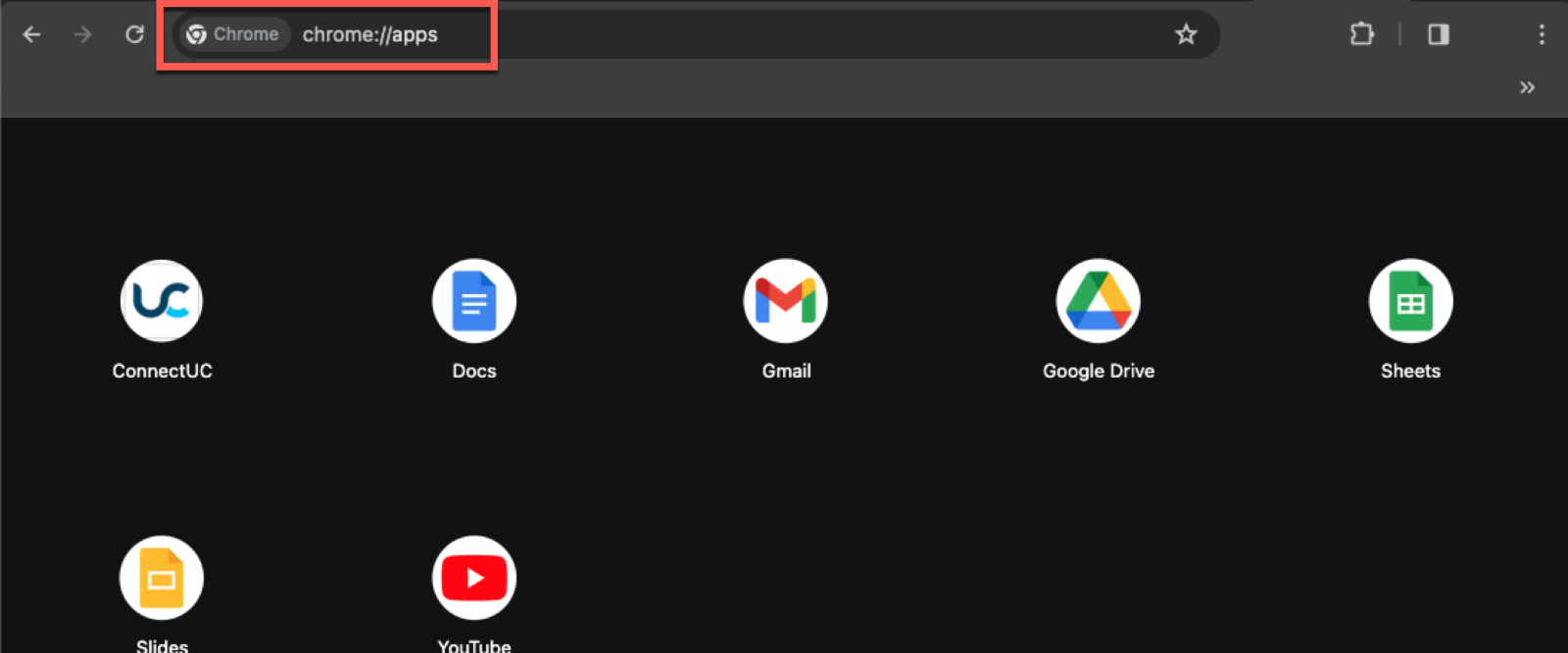
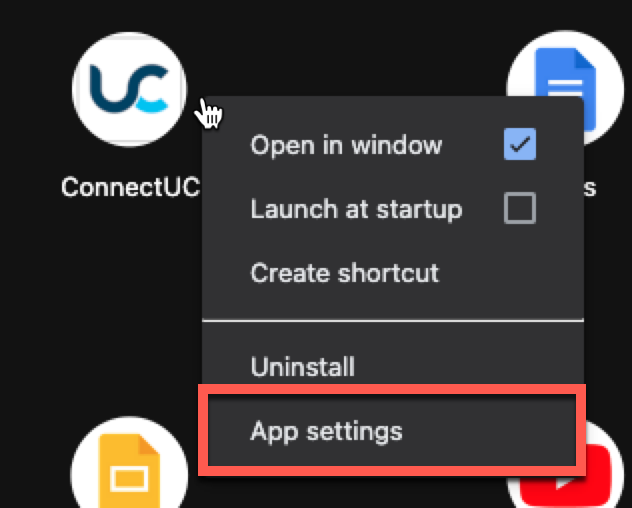
- Locate the app you wish to manage and right-click the App icon.
- Select “App Settings” from the options available.
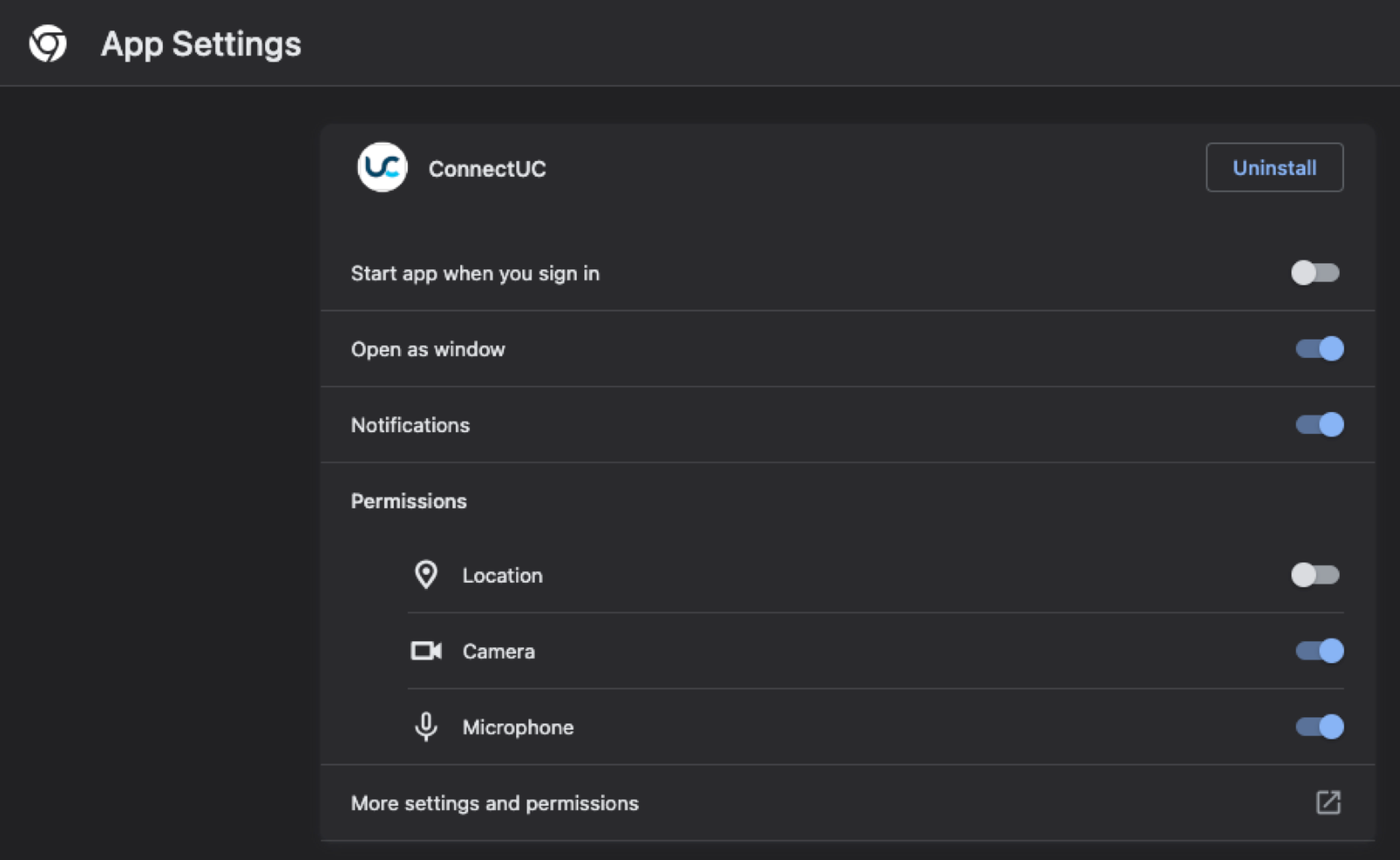
Once you arrive at the management page, you will find various options, such as starting the app when you sign in or updating notification and permissions settings. To uninstall a PWA, click the “Uninstall” button found at the top-right corner of the screen.
Microsoft Edge Instructions
- Enter “edge://apps/” into your address bar to view all currently installed Edge Apps.
- Locate the app you wish to manage and click the "..." button to access app settings.
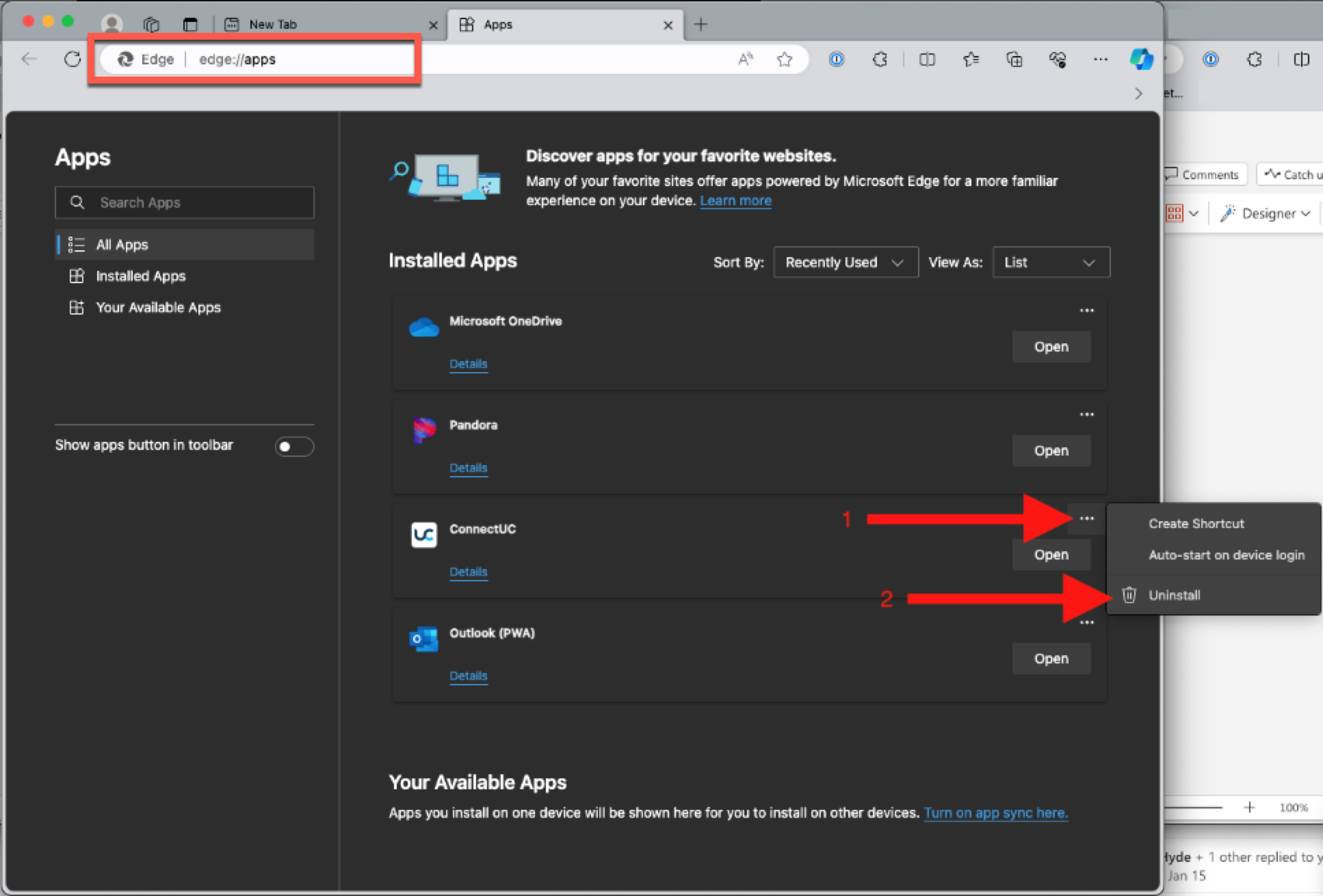
To uninstall a PWA with Microsoft Edge, click the "..." button next to the app and select "Uninstall."
Was this article helpful?
That’s Great!
Thank you for your feedback
Sorry! We couldn't be helpful
Thank you for your feedback
Feedback sent
We appreciate your effort and will try to fix the article